If your child keeps asking for your phone, spending hours watching videos, or downloading new apps every day, you are not alone. Many parents today struggle to manage their child’s screen time and online activity in this digital world. Because of this, more families are looking for simple ways to create healthier digital habits while still allowing children to use technology safely.
Thankfully, Google Family Link can help.
Google Family Link is a parental control app from Google that allows parents to monitor screen time, manage app downloads, and create healthier digital habits for their children. Even better, it works on both Android and iPhone.
Google Family Link is a free family safety app created by Google. It helps parents supervise their child’s device activity and manage online safety settings.
With Google Family Link, parents can:
1. View screen time activity
2. Approve or block app downloads
3. Set daily screen time limits
4. Lock devices remotely
5. Track device location
6. Manage YouTube and Google services
As a result, parents can stay involved in their child’s digital life without constantly checking their phone.
For example, if your child wants to download a new app, Google Family Link can send a notification directly to the parent’s phone. Then, parents can choose to approve or block the app remotely.
If the app is blocked, the child will not be able to install or access it on their device. This gives parents more control over what children can use while still allowing kids to explore technology safely.
In the same way, parents can also manage screen time limits, lock devices, and monitor app activity directly from their own phone.
Many parents worry about excessive screen time, unsafe apps, and online distractions. At the same time, children need technology for learning, communication, and entertainment.
Because of this balance, Google Family Link has become one of the most popular parental control tools for families.
It allows parents to:
– Encourage healthier screen habits
– Prevent children from downloading unsafe apps
– Create device schedules for sleep or study time
– Understand how children use their devices
Most importantly, it gives parents more control in today’s digital world.
Before starting, make sure:
1. The parent has a Google account
2. The child has a Google account
3. Both devices have internet access
4. The Google Family Link app is installed
You can download Google Family Link from:
1. Google Play Store (Android)
2. Apple App Store (iPhone)
The setup process for Google Family Link is mostly the same on Android and iPhone.
Parents can use either Android or iPhone as the parent device. However, Android devices usually support more parental control features for child supervision.
Before starting, prepare:
– The parent’s phone
– Your child’s phone or tablet
– A Google account for both parent and child
– Internet connection on both devices
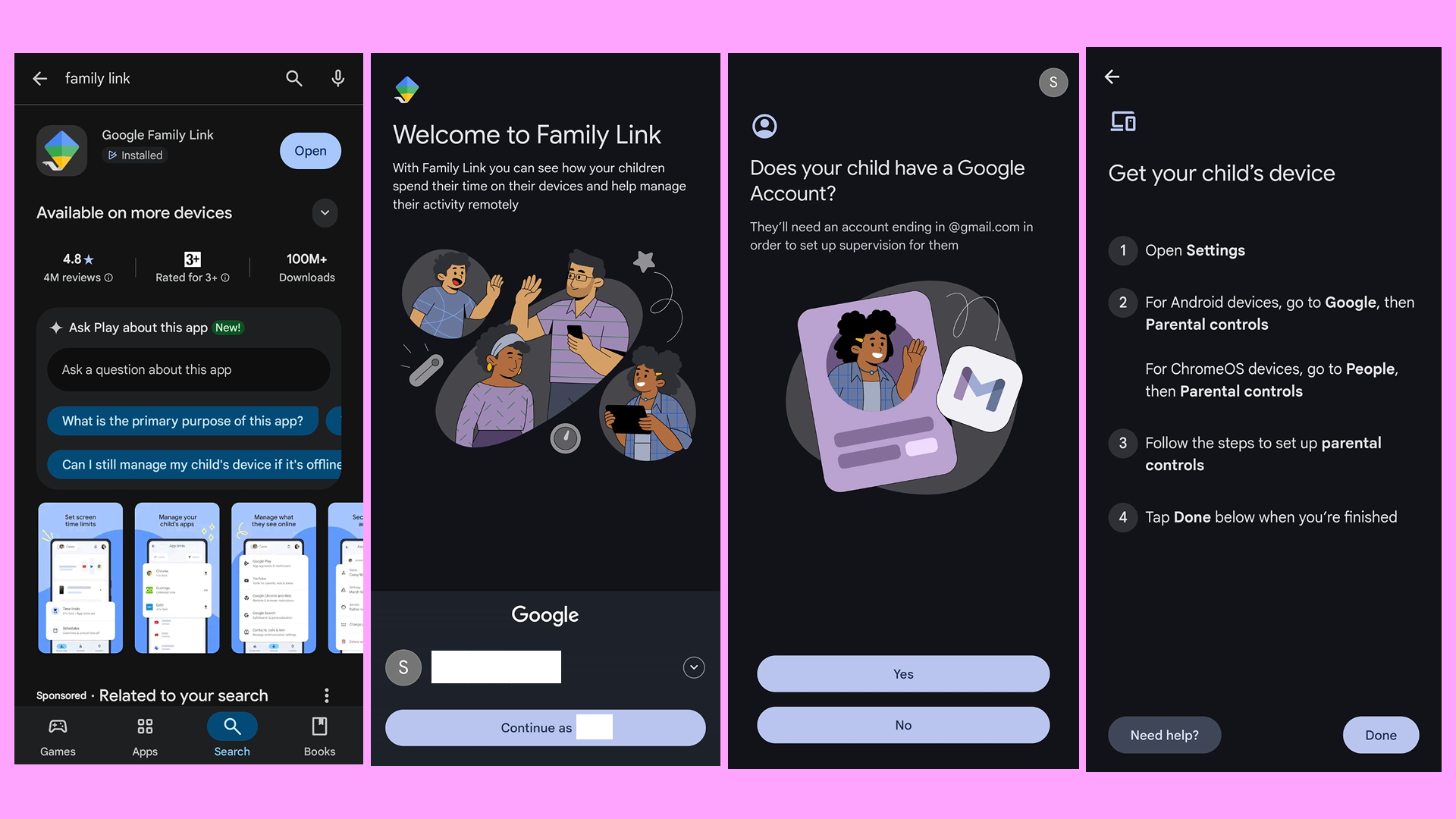
First, download Google Family Link from:
– Google Play Store (Android)
– Apple App Store (iPhone)
Then install the app on the parent’s phone.
Open the app and sign in using the parent Google account.
This account will be used to manage your child’s device activity and parental controls.
Inside the app, tap:
“Add Child”
If your child already has a Google account, sign in using that account.
If not, Google Family Link can help you create a child account during setup.
Next, take your child’s phone or tablet.
Sign in using the child’s Google account.
Google will then ask permission to connect both devices.
Approve the supervision request on the parent phone.
Once connected, Google Family Link will activate parental supervision automatically.
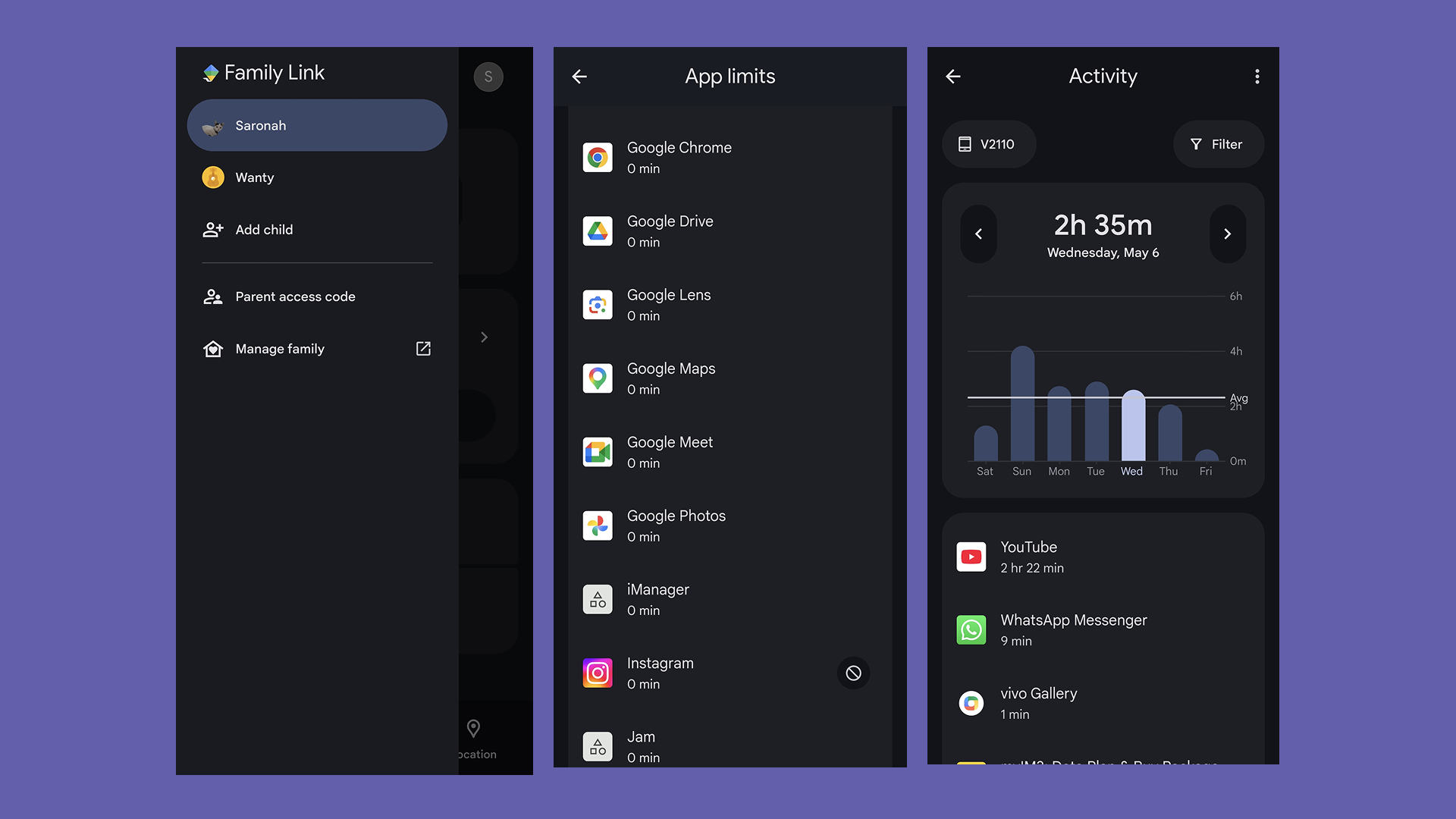
After setup, parents can:
– Approve or block app downloads
– Receive app install notifications
– Set screen time limits
– View app activity
– Lock the child device remotely
– Restrict certain content
For example, if your child downloads a new app, the parent phone will receive a notification. Then parents can approve or block the app directly from their own device.
If blocked, the child will not be able to install or use the app.
Now your child’s device is successfully connected to Google Family Link.
Parents often ask an important question:
“Do I need to install Google Family Link on my child’s phone too?”
The answer is yes.
Google Family Link needs to be connected between both devices for proper device supervision and child account management.
Here is how to set it up on your child’s phone:
1. Open device settings
2. Add your child’s Google account
3. Follow the Family Link setup instructions
4. Connect to the parent account
5. Allow supervision permissions
After that, the device becomes supervised.
Google Family Link has more limited support on iPhones used by children.
Still, parents can monitor some Google services if the child uses Google apps and accounts.
1. Parents can decide how long children use their devices each day.
2. Parents can approve or block app downloads from Google Play.
3. Parents can lock the device instantly when needed.
4. Google Family Link shows which apps children use most often.
5. Parents can see the child device location if location sharing is enabled.
Yes. Google Family Link is considered safe and widely used by families worldwide for digital parenting and child device monitoring.
However, parental controls work best when combined with healthy conversations about technology.
Instead of only restricting screen time, parents should also teach children:
– Responsible internet behavior
– Online safety
– Healthy digital habits
– Balanced screen use
In other words, technology tools should support parenting, not replace it.
Technology is now part of everyday family life. Because of this, parents need tools that help children use devices safely and responsibly.
Google Family Link makes that process easier.
Whether you use Android or iPhone, Google Family Link allows parents to manage screen activity, approve apps, and create healthier digital routines.
Most importantly, it helps families build better digital habits together.
If you want more parenting and technology guides, visit kids.tech for more helpful resources.
Yes. Google Family Link is completely free to use. Parents can download the app on Android or iPhone without paying any subscription fee.
Yes. Parents can approve or block app downloads directly from their own phone. If an app is blocked, the child will not be able to install or use it.
Yes. Parents can use Google Family Link on iPhone to manage screen time, approve apps, and monitor activity. However, some features work better on Android devices.
Google Family Link can show app activity, screen time, and device usage. However, it does not show private messages, browsing history from all apps, or social media conversations.
When children reach the minimum age in their country, they can choose to manage their own Google account. However, parents will receive a notification before supervision settings change.